EJBCA
Integration with EJBCA
EJBCA is free software for PKI. With it, you can set up a certificate authority structure to issue certificates with the keys generated and stored in the HSM.
Environment configuration
To facilitate integration, the guide will use a Docker container provided by primekey, its maintainer.
A Dockerfile can be easily created to generate and run the container; below is an example of the Dockerfile and the webserver configuration file with the necessary parameters:
FROM primekey/ejbca-ce:7.4.3.2

USER root

RUN ["microdnf", "install", "libnsl2-1.2.0-2.20180605git4a062cf.el8.x86_64"]
RUN ["ln", "-s", "/usr/lib64/libnsl.so.2", "/usr/lib64/libnsl.so.1"]

ADD dinamo-4.7.11-1.el7.centos.x86_64.rpm .
RUN ["/usr/bin/rpm", "--nosignature", "-i", "dinamo-4.7.11-1.el7.centos.x86_64.rpm"]
RUN ["/usr/bin/rm", "dinamo-4.7.11-1.el7.centos.x86_64.rpm"]

ENV TLS_SETUP_ENABLED=simple
ENV DFENCE_PKCS11_IP=192.168.1.101
ENV DFENCE_PKCS11_USER=master
ENV HSM_DISABLE_LEGACY_OPERATIONS=1

EXPOSE 8080
EXPOSE 8443

COPY web.properties /opt/primekey/ejbca/conf/
httpserver.pubhttp=80
httpserver.pubhttps=443
httpserver.privhttps=443
httpserver.external.privhttps=443
web.reqcertindb=false

cryptotoken.p11.lib.115.name=HSM Dinamo
cryptotoken.p11.lib.115.file=/usr/lib64/libtacndp11.so
cryptotoken.p11.lib.115.canGenerateKeyMsg=ClientToolBox must be used to generate keys for this HSM provider.
cryptotoken.p11.lib.115.canGenerateKey=true

cryptotoken.p11.lib.255.name=P11 Proxy
cryptotoken.p11.lib.255.file=/opt/primekey/p11proxy-client/p11proxy-client.so
cryptotoken.p11.lib.255.canGenerateKeyMsg=ClientToolBox must be used to generate keys for this HSM provider.

# Normally key generation will be allowed via the UI
cryptotoken.p11.lib.255.canGenerateKey=true

# Enable usage of Azure Key Vault Crypto Token in the Admin UI
keyvault.cryptotoken.enabled=true

# Enable usage of AWS KMS Crypto Token in the Admin UI
awskms.cryptotoken.enabled=true
web.docbaseuri=disabled
web.reqcert=false
It is important to look at the version of the HSM client software that is being copied into the container and modify accordingly. You can download it from Downloads, and the version must be at least 4.7.12
Restricted Mode
To use EJBCA in restricted mode, it is necessary to include an entry in the webserver configuration file pointing to another attributes file. Below are the files already configured for restricted mode:
FROM primekey/ejbca-ce:7.4.3.2

USER root

RUN ["microdnf", "install", "libnsl2-1.2.0-2.20180605git4a062cf.el8.x86_64"]
RUN ["ln", "-s", "/usr/lib64/libnsl.so.2", "/usr/lib64/libnsl.so.1"]

ADD dinamo-4.7.12-1.el7.centos.x86_64.rpm .
RUN ["/usr/bin/rpm", "--nosignature", "-i", "dinamo-4.7.12-1.el7.centos.x86_64.rpm"]
RUN ["/usr/bin/rm", "dinamo-4.7.12-1.el7.centos.x86_64.rpm"]

ENV TLS_SETUP_ENABLED=simple
ENV DFENCE_PKCS11_IP=192.168.1.101
ENV DFENCE_PKCS11_USER=master
ENV HSM_DISABLE_LEGACY_OPERATIONS=1

EXPOSE 8080
EXPOSE 8443

COPY web.properties /opt/primekey/ejbca/conf/
COPY dinamo.cfg /opt/primekey/ejbca/conf/
httpserver.pubhttp=80
httpserver.pubhttps=443
httpserver.privhttps=443
httpserver.external.privhttps=443
web.reqcertindb=false

cryptotoken.p11.lib.115.name=HSM Dinamo
cryptotoken.p11.lib.115.file=/usr/lib64/libtacndp11.so
cryptotoken.p11.lib.115.canGenerateKeyMsg=ClientToolBox must be used to generate keys for this HSM provider.
cryptotoken.p11.lib.115.canGenerateKey=true
cryptotoken.p11.attr.115.file=/opt/primekey/ejbca/conf/dinamo.cfg

cryptotoken.p11.lib.255.name=P11 Proxy
cryptotoken.p11.lib.255.file=/opt/primekey/p11proxy-client/p11proxy-client.so
cryptotoken.p11.lib.255.canGenerateKeyMsg=ClientToolBox must be used to generate keys for this HSM provider.

# Normally key generation will be allowed via the UI
cryptotoken.p11.lib.255.canGenerateKey=true

# Enable usage of Azure Key Vault Crypto Token in the Admin UI
keyvault.cryptotoken.enabled=true

# Enable usage of AWS KMS Crypto Token in the Admin UI
awskms.cryptotoken.enabled=true
web.docbaseuri=disabled
web.reqcert=false
attributes(*,*,*) = {
  CKA_TOKEN = true
}
attributes(*,CKO_PRIVATE_KEY,*) = {
  CKA_PRIVATE = true
  CKA_SIGN = true
  CKA_DECRYPT = true
  CKA_EXTRACTABLE = false
  CKA_SENSITIVE = true
}
disabledMechanisms = {
  CKM_RSA_X_509
  CKM_SHA_1
  CKM_MD2
  CKM_MD5
  CKM_SHA1_RSA_PKCS
  CKM_MD2_RSA_PKCS
  CKM_MD5_RSA_PKCS
  CKM_RSA_PKCS
}
Running container
-
To create the container, simply use the command below in the directory where the Dockerfile is located. Remember that the client files,
web.propertiesanddinamo.cfg(in the case of restricted mode) must be in the same directory:docker build -t ejbca .then:
docker run -it --rm -p 80:8080 -p 443:8443 -h mycahostname -e TLS_SETUP_ENABLED="simple" ejbca -
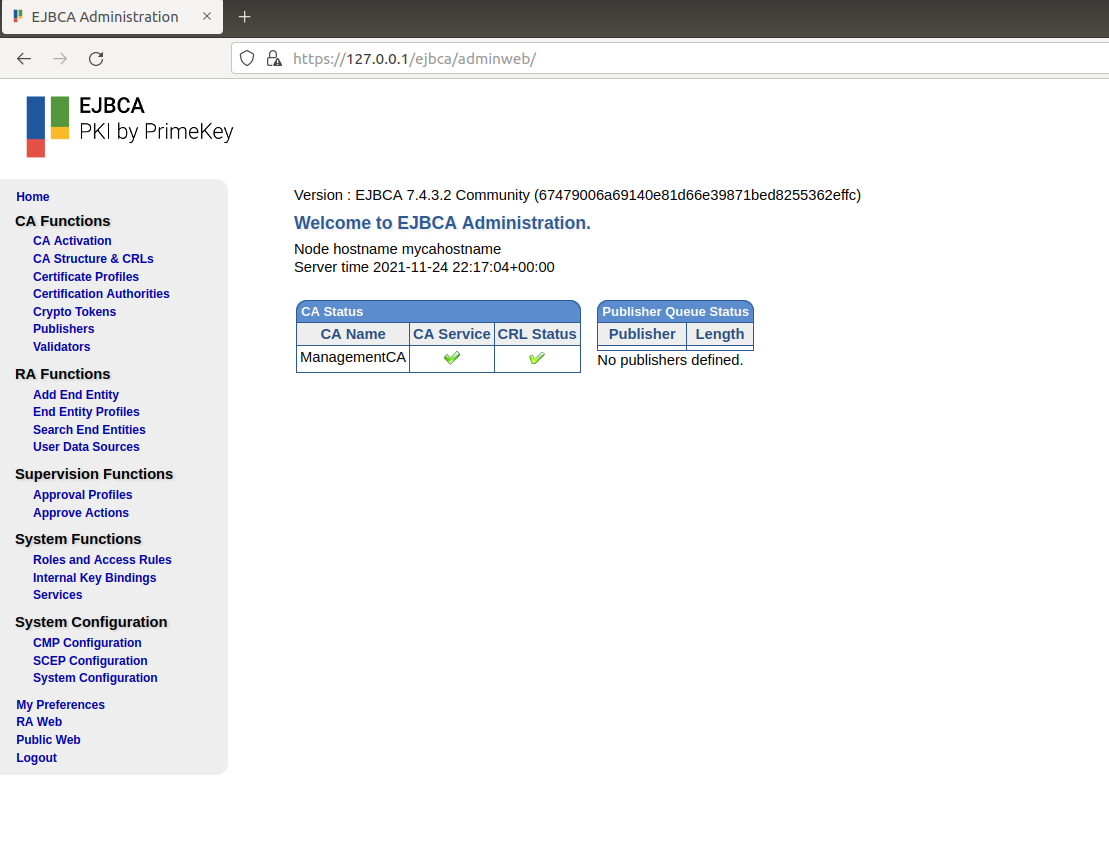
Once the server is up, connect using the browser at: https://127.0.0.1/ejbca/adminweb/ .
-
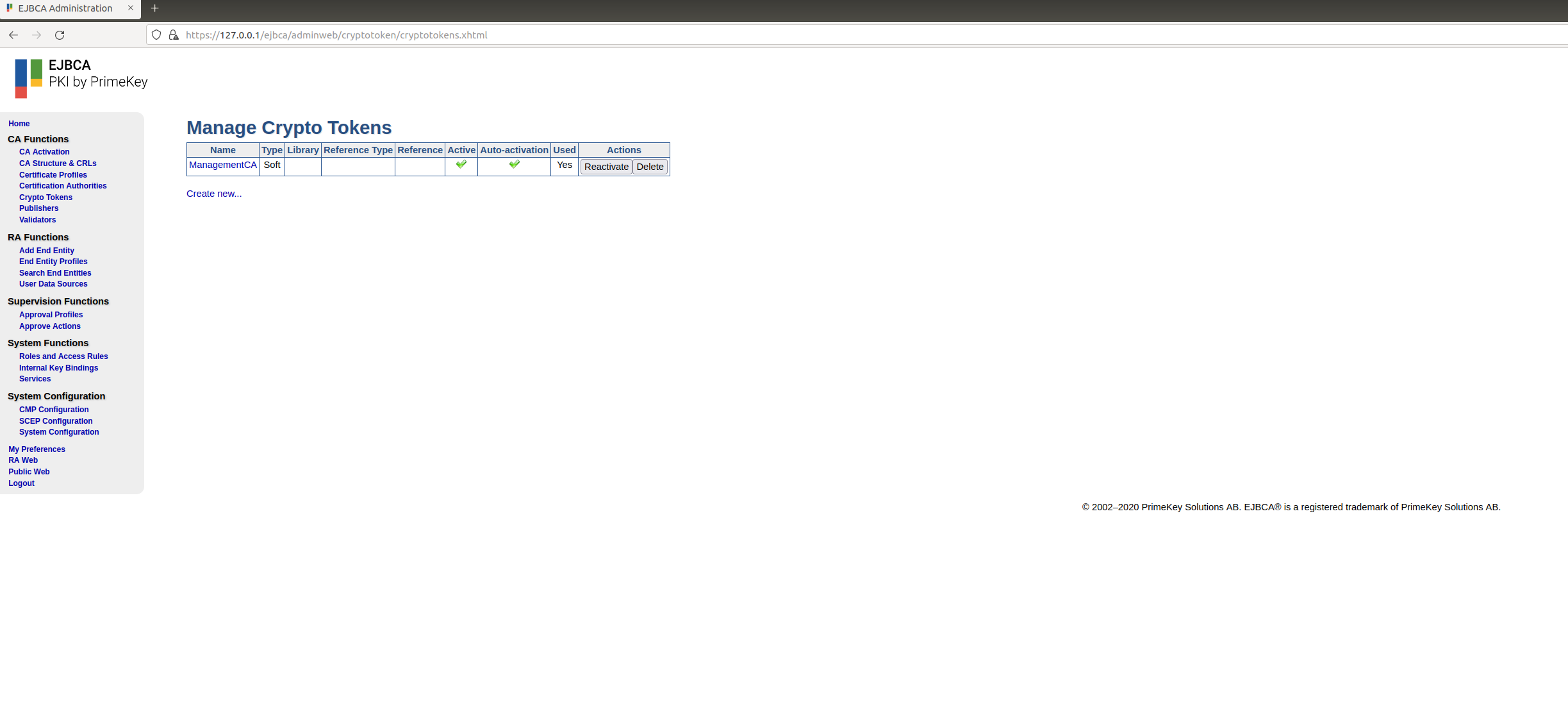
Then click on the Crypto Tokens menu to create the connection to the HSM, click on Create New.
-
The parameters to set for the crypto token are:
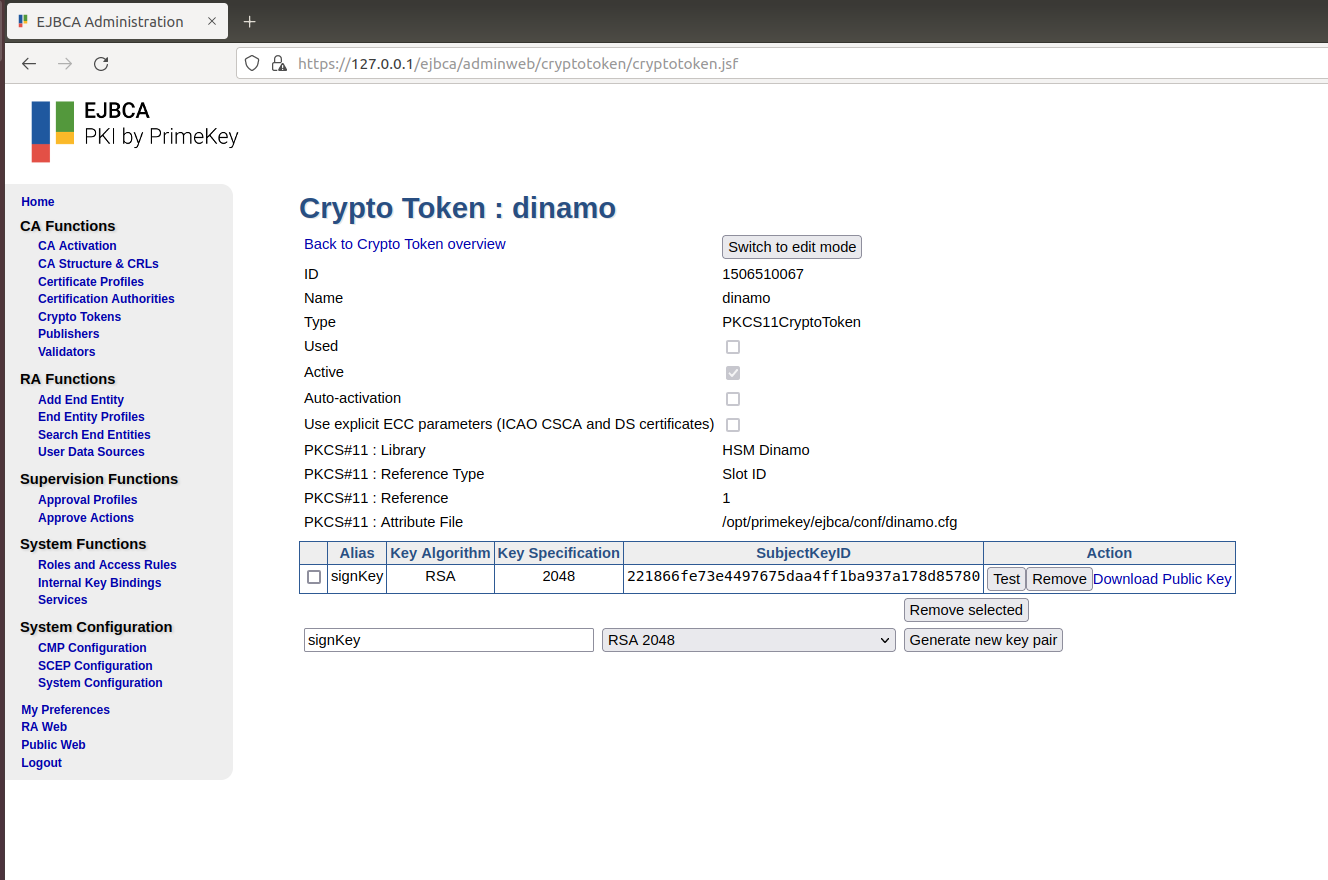
crypto tokenName: qualquer nome Type: PKCS#11 Authentication Code: senha do usuário que está na variável de ambiente DFENCE_PKCS11_USER que está no Dockerfile Library: HSM Dinamo Reference Type: Slot ID Reference: 1 Attributes file: Default ou dinamo.cfg (no caso do HSM estar modo restrito)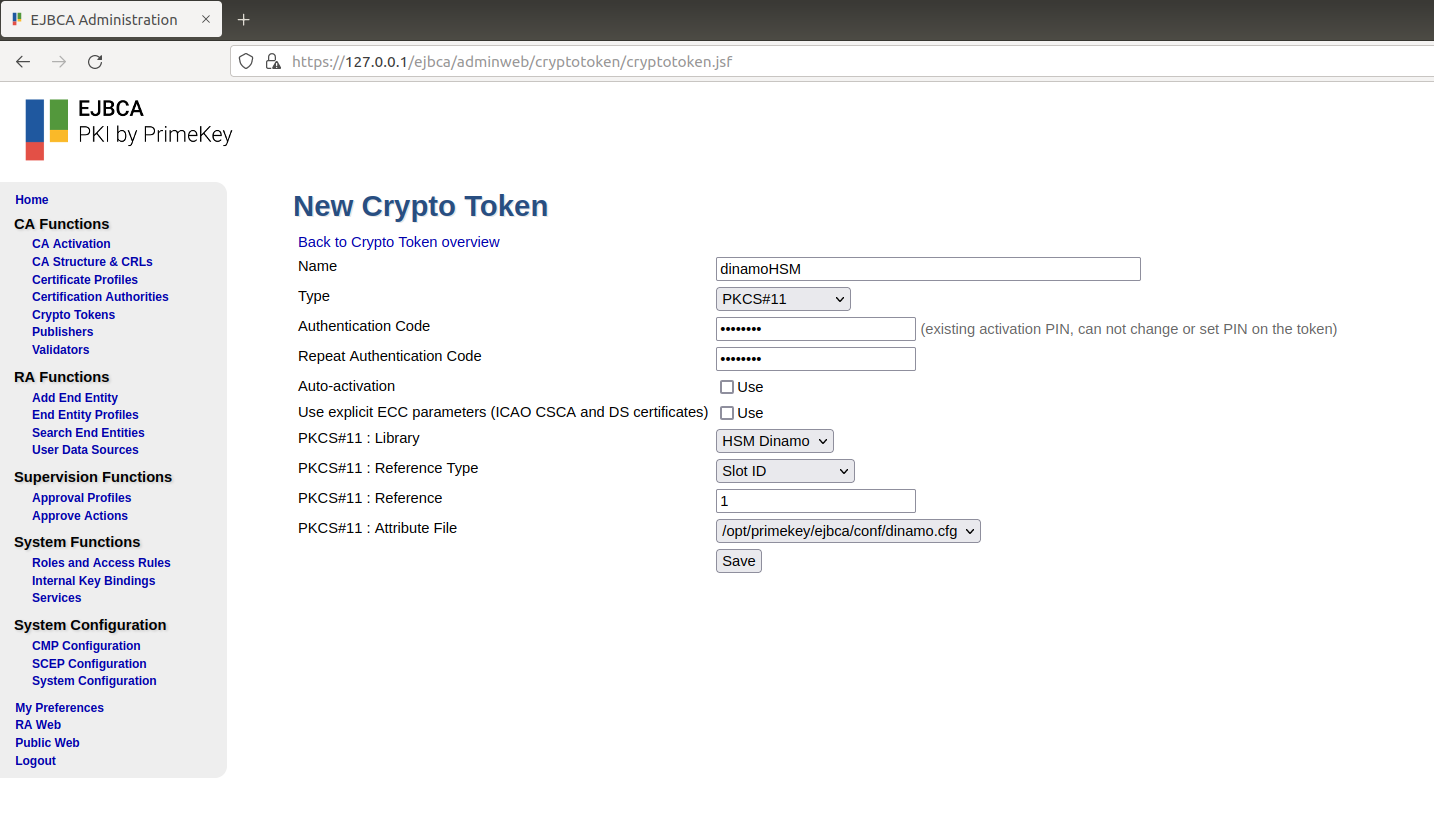
-
After the crypto token is created, keys can be generated by clicking the 'Generate new key pair' button.