License Installation
Licenses can be installed at any time using the HSM consoles.
For more details on the mechanism and the licenses available, see the License topic.
In new HSM environments or after a factory reset, installation via the command line (hsmcon) is recommended.
Notes
It is important to save the .lpack file you received.
In case of loss, doubts or need to re-issue, please contact Technical Support.
In the HSM Reset operation, the installed licenses are removed.
Command-Line Installation
Log in to the HSM and select the " Licenses..." option ....
Dinamo - Remote Management Console v. 4.26.0.0 2018 (c) Dinamo Networks

HSM 127.0.0.1 e - Engine 6.7.0.0 (DXP) - TCA0000000  - ID master

Main Menu

Keys/Objects              Users                        HSM

 1 - Generate...          18 - Create                  35 - Info
 2 - Remove               19 - Remove                  36 - Logs...
 3 - Attributes           20 - List                    37 - Backup...
 4 - Import...            21 - Attributes              38 - Monitoring...
 5 - Export...            22 - Trust Relations         39 - Firmware Update
 6 - List                 23 - Password Policy         40 - Replication...
 7 - Permissions...       24 - My Password             41 - IP Filter...
 8 - Key Backup...                                     42 - Telemetry
                                                       43 - Policies
                                                       44 - Tools...
                                                       45 - Modules...
                                                       46 - Smart-card...
                                                       47 - Licenses... # (1)!
                                                       48 - Tests...


 0 - Exit

Option:
- License management option
In the license management menu, select the "Install" option and then enter the path to the license file (*_.lpack_). If the license is valid and processed correctly, a success message will be displayed. From this point on, the licenses are active.
Dinamo - Remote Management Console v. 4.26.0.0 2018 (c) Dinamo Networks

HSM 127.0.0.1 e - Engine 6.7.0.0 (DXP) - TCA0000000  - ID master

HSM - Licenses


 1 - List
 2 - Install # (1)!
 3 - Uninstall


 0 - Main Menu

Option:
- License installation option
To install or reinstall other licenses at any time, simply follow the same procedure.
Installation via the GUI console
Due to environment restrictions, it may be necessary to refresh the page in the browser in order to load the console correctly. Once the license is installed, this behavior is eliminated.
-
When a session is opened and the console identifies that there are no licenses installed, a special operating mode is activated to alert the operator and allow more agile loading.
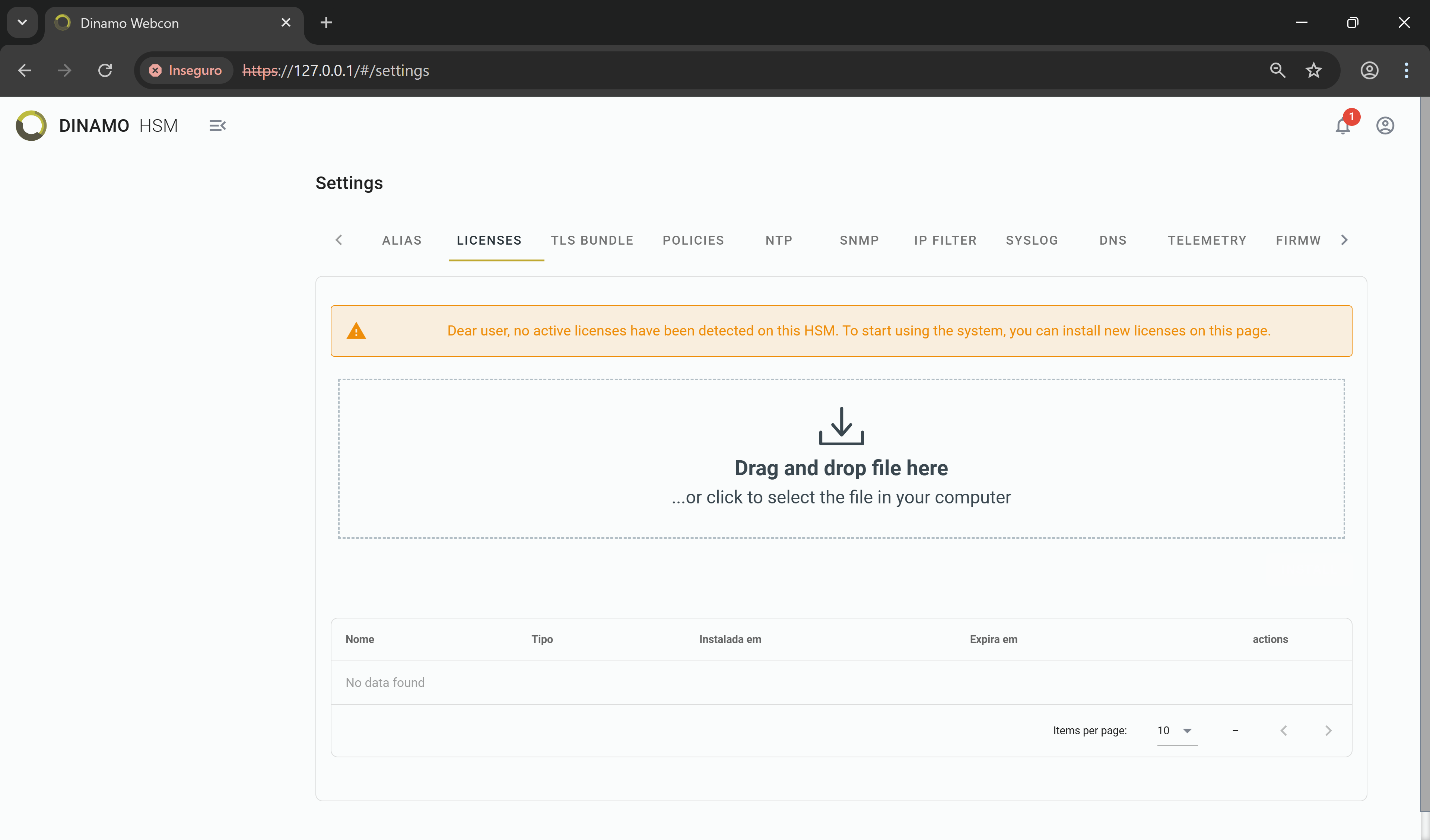
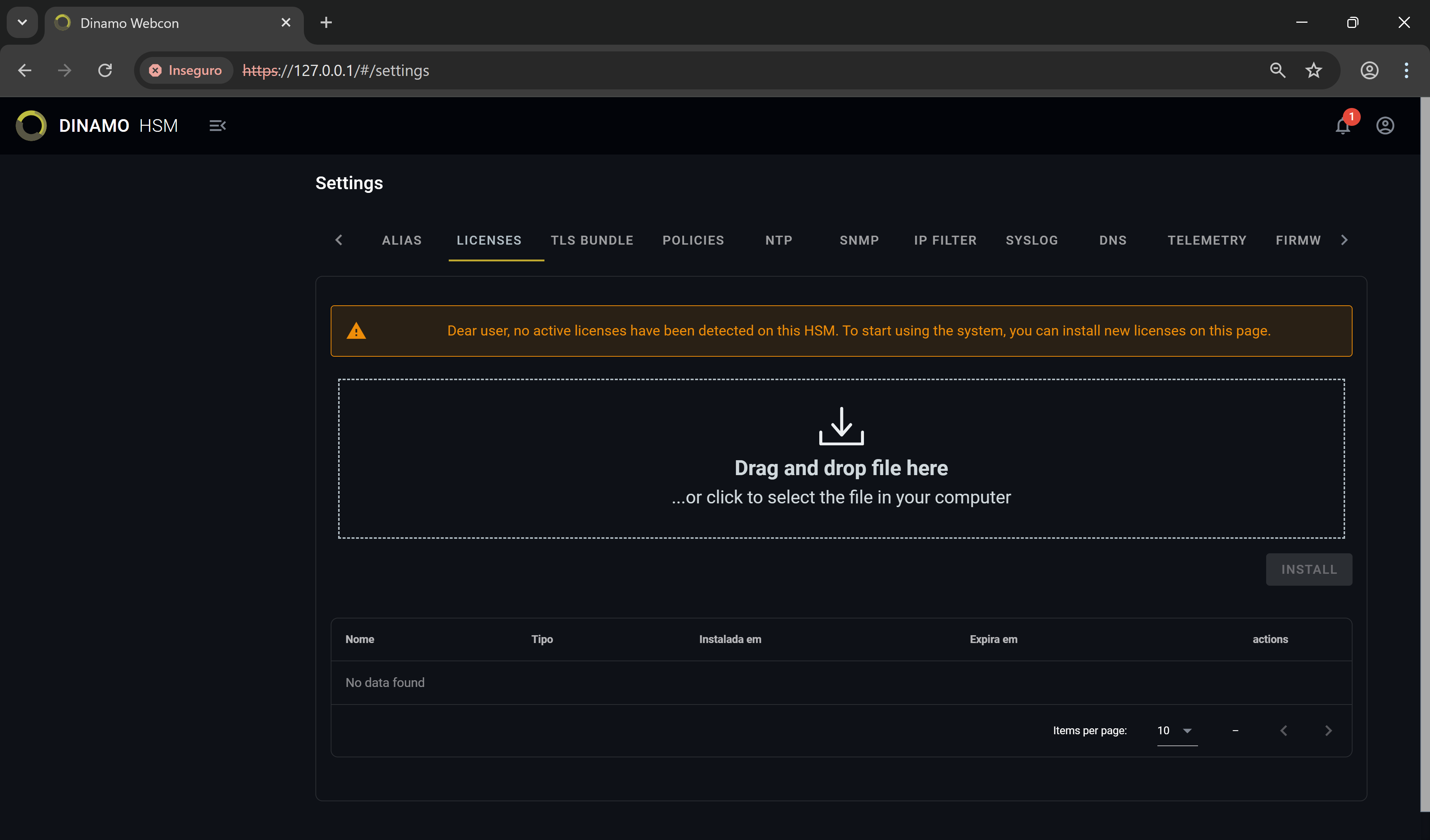
Console in License Installation mode -
Drag (or click to select) the
*.lpackfile with the license to the device. Click Install and confirm the upload. If the license is valid and processed correctly, a success message will be displayed and the active licenses in the file will be listed on the same page. The licenses are now effective.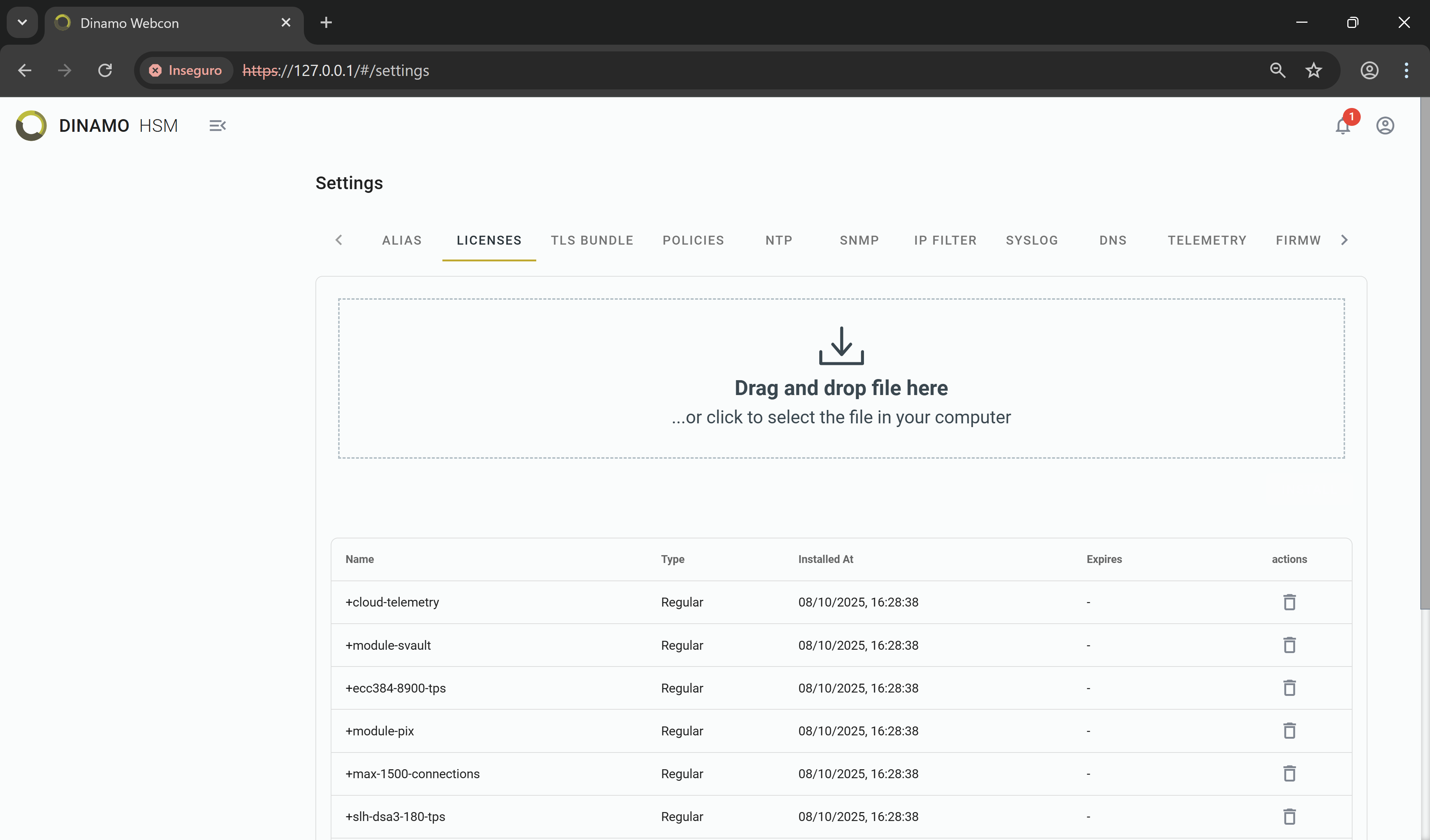
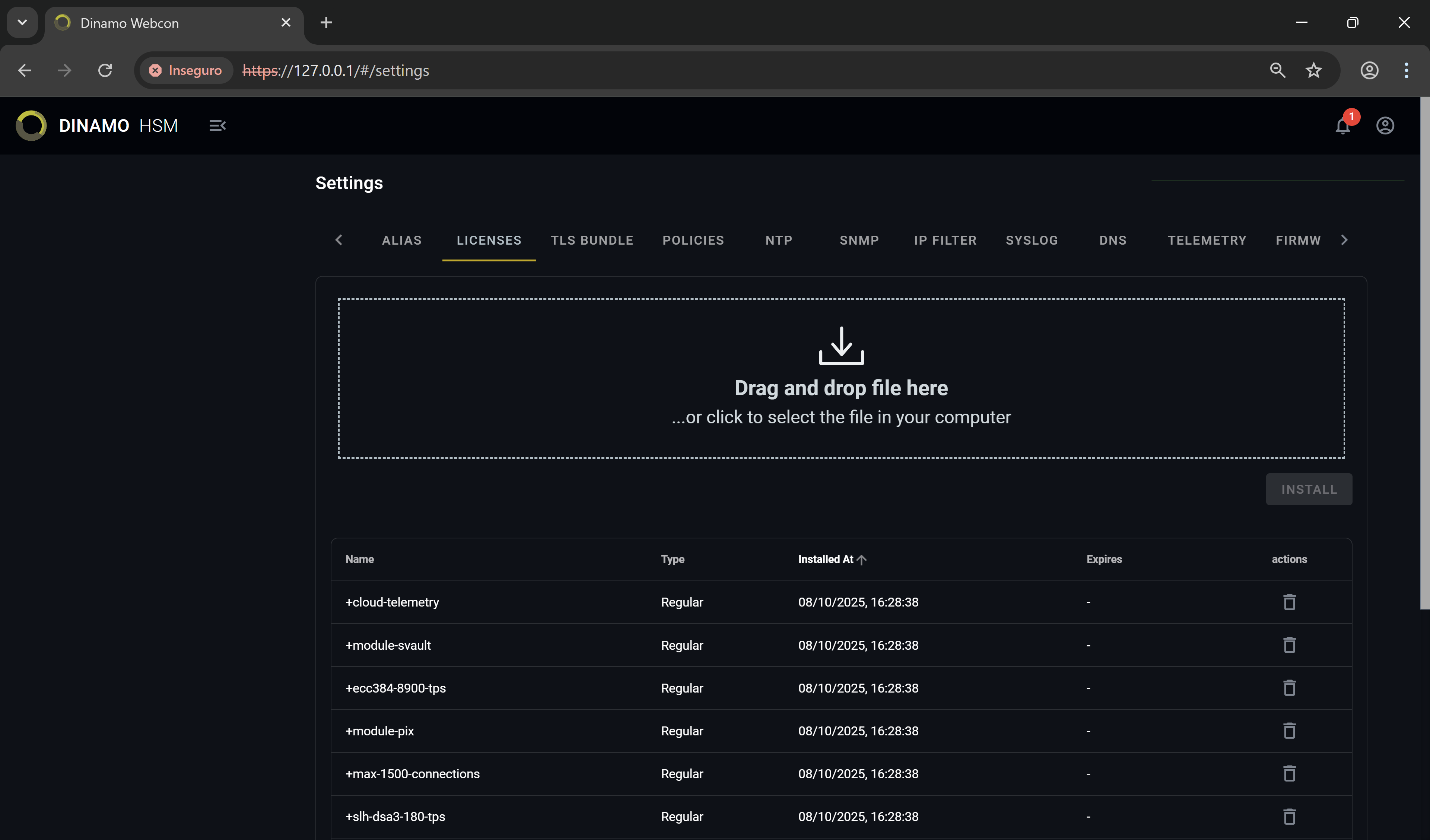
Console - List of installed licenses
To install or reinstall other licenses at any time, just follow the same procedure. The tab is in the Settings menu.