Technical Support
Applicable to all cases in which there is a need for DINAMO customers need to use the Technical Support channels.
Info
For inquiries regarding Service Level Agreements (SLA), please refer to your specific contract.
The Technical Support channels can be used to deal with:
- Doubt;
- Request;
- Incident.
Channels for Opening Support Tickets
-
Website
Access our Technical Support site via browser.
Warning
This is the preferred channel for opening support tickets.
-
E-mail
Incidents can be reported via email. Send a detailed description of the incident to: suporte@dinamonetworks.com.
-
Phone
Receive friendly and practical assistance from our telephone support team by calling 0800 887 0907. Our opening hours are 24 hours a day, 7 days a week.
Instructions for using the site
On the Technical Support login screen, create your username and password. A confirmation email will be sent and, once confirmed, you can now use our Technical Support. When opening your ticket, classify the urgency and category of the ticket to ensure the timeliness and quality of your service by our technical team. On the page you can report technical incidents, follow the phases and actions of the ongoing process and add information at any time
-
Login Screen
Enter your username and password and click Login.
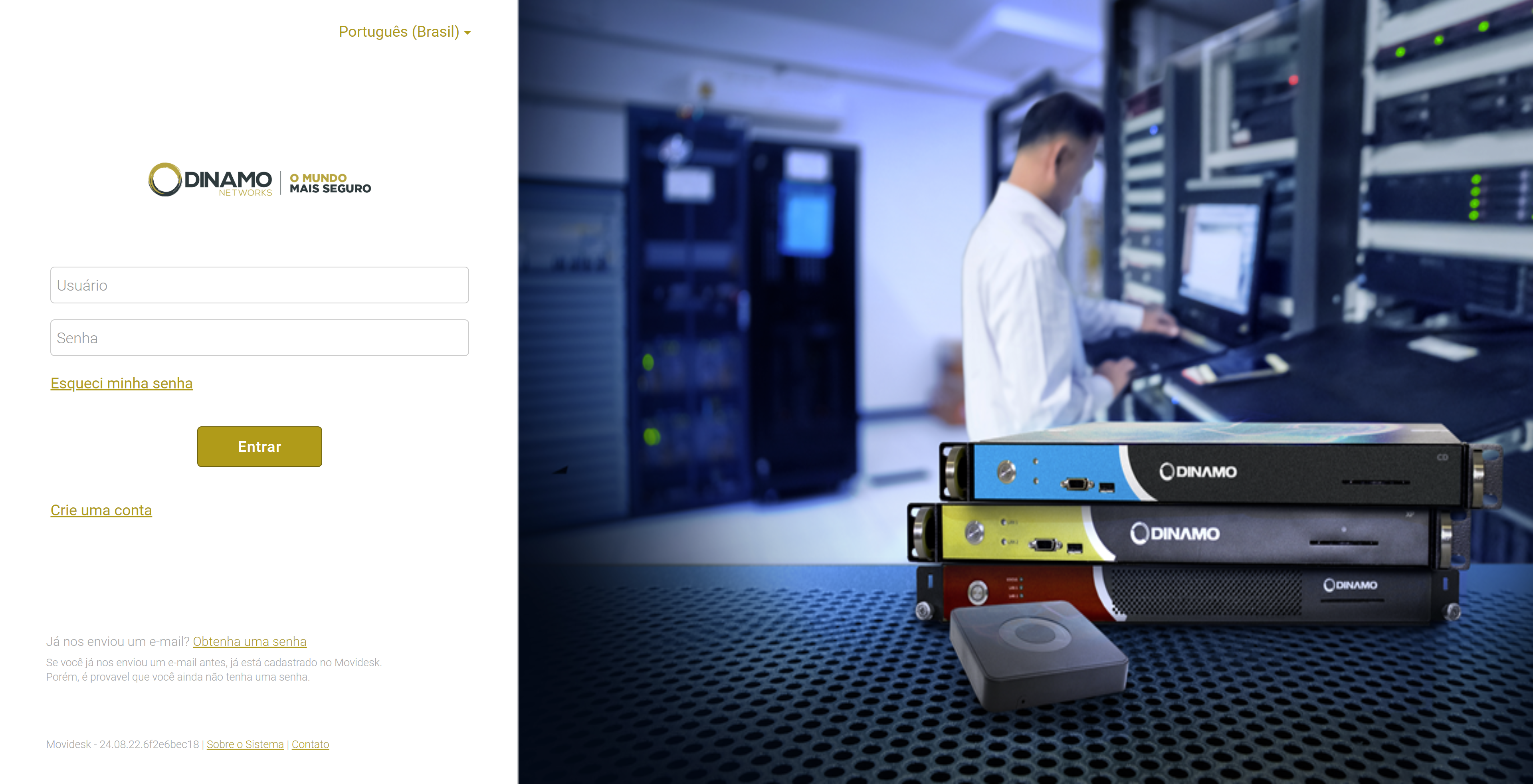
Login Screen -
Home Screen
First screen after logging into the system.
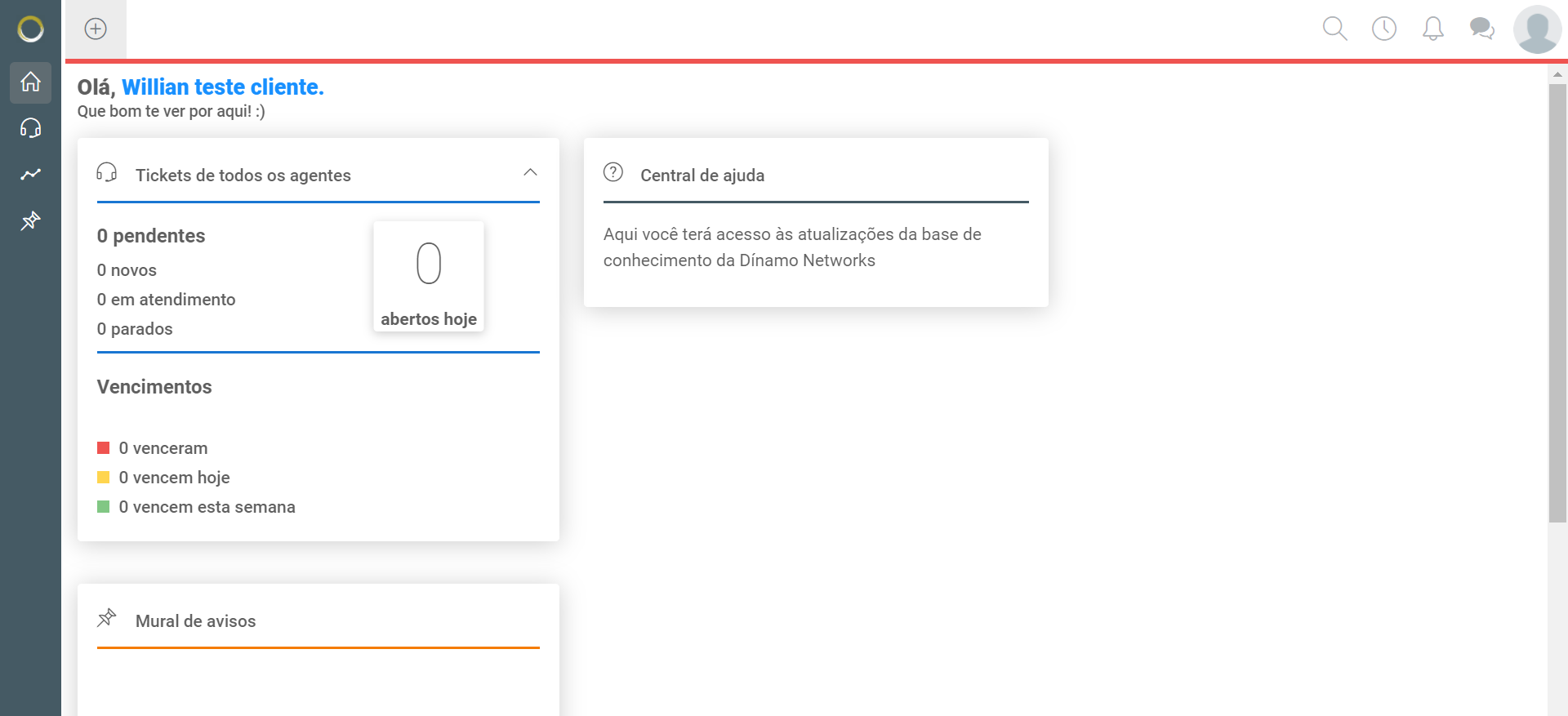
Home Screen -
New ticket ( Alt+T )
To open a new ticket, simply press the Alt key together with the T or click on the circle at the top left of the screen, as shown by the red arrow below. A new window will open with fields for your incident information
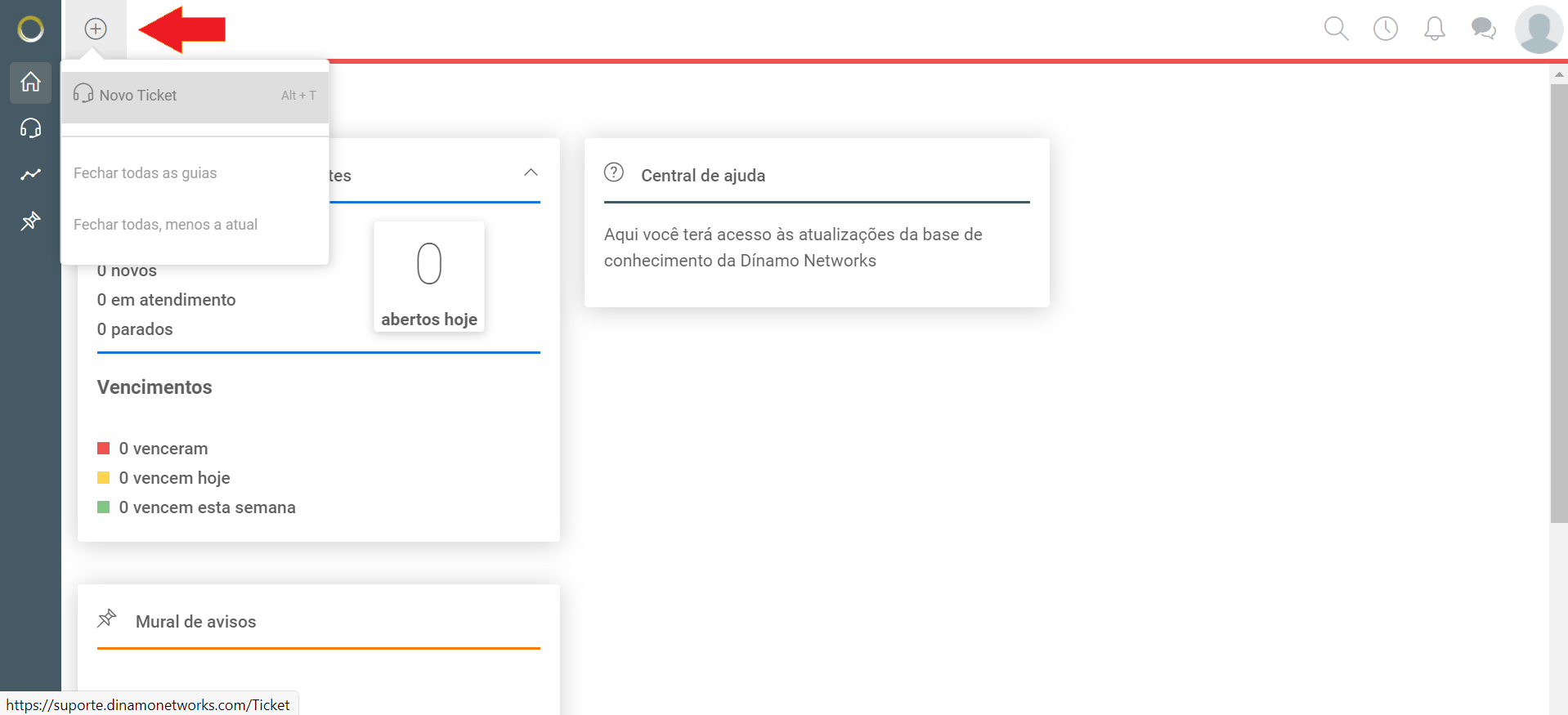
New Ticket -
Complete the Primary Fields
Rate the urgency of your request. Typically, questions are low-urgency, for example. Fill in the “Subject” field with a brief description of why you’re opening this ticket. Avoid generic phrases like “opening a ticket,” and instead use descriptions that specify the purpose of the ticket, such as “authentication failure” or “how to update the firmware.” In the field dedicated to the ticket description, please provide as much information as possible, as this will allow our technical team to gain a more complete understanding of the situation and respond more quickly.
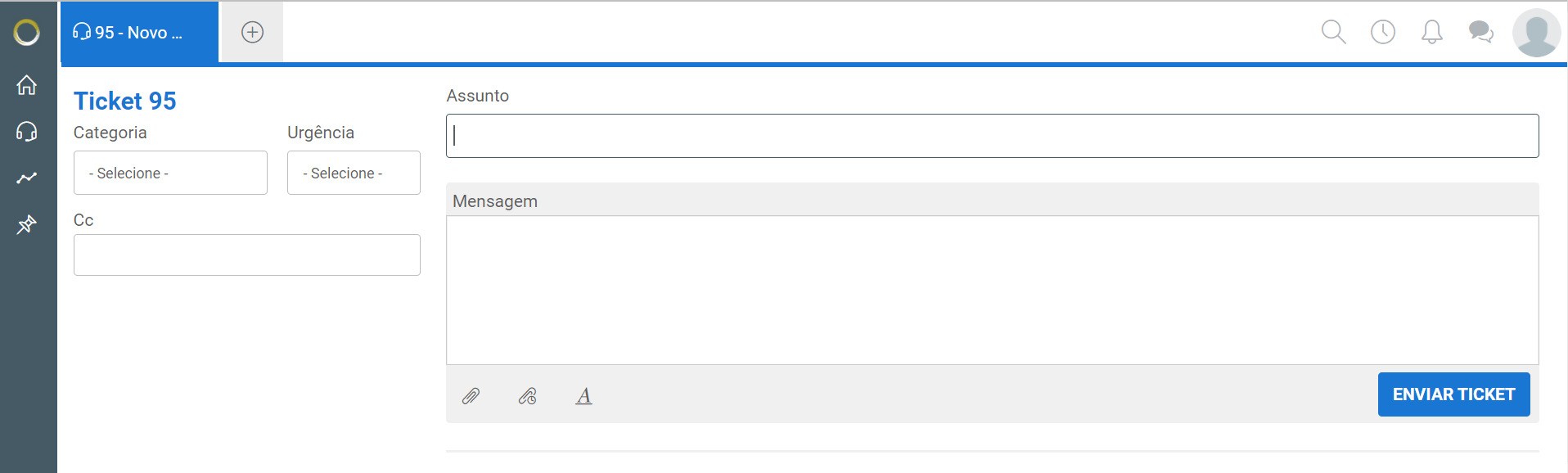
Main Fields In case of an Incident
In order for the DINAMO support team to be able to act more effectively in resolving incidents, some information is appropriate and should, if possible, be provided when the incident is opened:
- HSM serial numbers;
- HSM info (copy and paste from the hsmcon console);
- HSM log files;
- Client log files;
- Screenshot and/or video files;
- Name of the application used.
- HSM API used.
Regarding the incident's descriptive text, we recommend including the following information, when possible:
- Steps to reproduce the error/condition;
- Expected outcome (what was anticipated when executing the steps);
- Actual outcome (what actually occurred).
-
Submit your ticket!
Once you have finished filling out the form, do not forget to click the SUBMIT TICKET button. You will receive an email confirming the protocol, and your service request will commence.
Technical Documentation
At https://docs.dinamonetworks.com, you can find documentation on DINAMO products. There you will find instructions for managing and integrating our HSMs, a description of how to use the device API (Application Programming Interface), return codes, remote administration, a troubleshooting guide, downloads, and examples.